
Troubleshooting Common Hardware Wallet Issues: Solutions and Tips


Welcome to Blockchain Trends, your guide to understanding the revolutionary power of blockchain. Beyond the hype, we delve into the real-world applications shaping our future. Are you experiencing frustrating hardware wallet connection problems? You're not alone! Discover practical solutions and expert tips to get your hardware wallet back online and secure, right here. Let's unlock the secrets to seamless and secure crypto management. Keep reading to troubleshoot common issues and ensure your digital assets are protected!
-
Troubleshooting Common Hardware Wallet Issues: Solutions and Tips
- Understanding Hardware Wallet Connection Problems and Other Glitches
- Why Your Hardware Wallet Might Not Be Working
- Common Causes of Hardware Wallet Issues
- Diagnosing Hardware Wallet Connection Problems
- Solutions for USB Connection Issues
- Checking Your Hardware Wallet's USB Cable and Port
- Trying a Different Computer or USB Port
- Ensuring Proper Device Drivers for Your Hardware Wallet
- Troubleshooting Ledger Live Connection Problems
- Fixing Trezor Suite Device Recognition Issues
- Resolving Software and Firmware Issues
- How to Safely Update Hardware Wallet Firmware
- Dealing with Firmware Update Failed Errors
- Clearing Cache and Reinstalling Wallet Software (e.g., Ledger Live, Trezor Suite)
- Addressing Transaction Signing Problems
- Insufficient Funds or High Network Fees
- Ensuring Firmware/Software Compatibility for Transactions
- What to Do When Your Hardware Wallet Won't Sign
-
Frequently Asked Questions
- What are the most common causes of hardware wallet connection problems?
- How can I determine if my hardware wallet connection problems are due to outdated firmware?
- What steps should I take if I suspect my computer's USB port is causing my hardware wallet connection problems?
- Could hardware wallet connection problems be related to my antivirus software or firewall settings?
- What resources are available if I've exhausted all troubleshooting steps for my hardware wallet connection problems?
- Final Reflection: Securing Our Digital Future
- Ignite Your Crypto Security: Take Control Now!
Troubleshooting Common Hardware Wallet Issues: Solutions and Tips
Understanding Hardware Wallet Connection Problems and Other Glitches
Hardware wallets are designed as secure, offline storage solutions for cryptocurrency private keys, offering a critical layer of defense against online threats. However, like any electronic device, users can encounter hardware wallet connection problems or other operational glitches that prevent access to their funds or the ability to sign transactions. These issues can range from simple cable problems to more complex software or firmware conflicts.
Recognizing the symptoms of these hardware wallet connectivity issues is the first step toward resolution. Common indicators include the device not being recognized by the computer, the wallet software failing to connect to the device, or the device freezing during operation or a firmware update.
These connection and operational problems, while frustrating, rarely indicate a compromise of the private keys themselves, as they are stored securely within the hardware wallet's protected element. The challenge lies in re-establishing the communication pathway between the device and the necessary software (like Ledger Live or Trezor Suite) to manage assets. For example, a user trying to send Bitcoin might find their Trezor Model T isn't detected by Trezor Suite, preventing them from initiating the transaction.
Or, a Ledger Nano X might connect but fail to load the Ethereum application, hindering interaction with DeFi protocols. Addressing these hardware wallet connection problems is essential for reliable access to your digital assets.
Why Your Hardware Wallet Might Not Be Working
Several factors can contribute to a hardware wallet not functioning correctly. At a basic level, physical issues such as a damaged USB port on the device or computer, or a faulty USB cable, are frequent culprits behind hardware wallet connection problems. These physical links are the primary way the device communicates with your computer and the internet (via the computer's connection), so any disruption here will cause immediate issues.
Beyond the physical layer, software and firmware discrepancies are major sources of trouble. The wallet's firmware (the operating system of the device) must be compatible with the version of the companion software running on your computer. An outdated version of either can lead to recognition failures or transaction signing errors.
Furthermore, conflicts with other software running on your computer can interfere with the hardware wallet's operation or the communication of its companion application. Antivirus programs, firewalls, or even other cryptocurrency-related software running in the background can sometimes block the connection or proper functioning of the wallet software, leading to hardware wallet connection problems. Operating system issues, such as missing or corrupted device drivers, can also prevent the computer from correctly identifying the connected hardware wallet. Pinpointing the exact cause often requires a systematic troubleshooting approach, moving from the simplest potential issues to the more complex ones.
Common Causes of Hardware Wallet Issues
Delving deeper, specific common causes are frequently cited by users experiencing hardware wallet problems. A worn or incompatible USB cable is perhaps the most overlooked reason for hardware wallet connection problems. Not all USB cables are created equal; some are charge-only and lack data transfer capabilities necessary for the wallet to communicate with the computer.
Additionally, using a USB hub, especially an unpowered one, can sometimes lead to insufficient power or data transfer issues for the hardware wallet. Another prevalent cause is using a USB port that is faulty or incompatible with the device (e.g., some older hardware wallets may have issues with specific USB 3.0 ports, preferring USB 2.0).
Software-wise, an outdated version of the wallet's companion application (like Ledger Live) or the device's firmware can prevent proper recognition or functionality. Wallet manufacturers regularly release updates to add support for new cryptocurrencies, improve security, or fix bugs. Failing to install these updates can lead to incompatibility issues with the blockchain networks or the software itself. Driver problems on the operating system level can also hinder device detection, although modern wallet software usually handles driver installation automatically. Finally, background processes or security software aggressively blocking connections can mimic hardware wallet connection problems, making the device appear disconnected or unresponsive.
Diagnosing Hardware Wallet Connection Problems
Effectively diagnosing hardware wallet connection problems requires a systematic approach to isolate the potential cause. Begin by checking the most obvious potential issues. Is the hardware wallet properly plugged into the computer? Is the USB cable securely connected at both ends?
Does the hardware wallet screen light up or show any sign of power when connected? If not, the issue might be with the cable, the port, or the device itself not receiving power. Assuming the device powers on, the next step is to see if the computer recognizes it. Check your operating system's device manager (on Windows) or system information (on macOS) to see if any new USB device is detected when you plug in the hardware wallet.
If the device is detected by the operating system but not by the wallet software (e.g., Ledger Live doesn't see your Ledger Nano S), the issue is likely software-related or a conflict. Try closing the wallet software and reopening it. Ensure no other applications that might try to access the hardware device (like other wallet software or browser extensions) are running.
Restarting your computer can resolve temporary software glitches that might be causing the hardware wallet connection problems. If the issue persists, investigating specific software settings, firewall rules, or trying the device on a different computer becomes necessary to rule out system-specific conflicts.
Solutions for USB Connection Issues
Addressing USB connection issues, a primary source of hardware wallet connection problems, often involves troubleshooting the physical connection components. The first and simplest step is often to unplug the hardware wallet and plug it back in, ensuring a firm connection. If that doesn't work, try using a different USB port on your computer. Sometimes, specific ports can become faulty or have power delivery issues. Avoid using USB hubs if possible; connect the hardware wallet directly to a port on the computer itself. If you must use a hub, ensure it is a high-quality, powered hub.
If switching ports doesn't resolve the hardware wallet connection problems, the USB cable itself is the next suspect. Try using a different USB cable that you know is functional and capable of data transfer, not just charging. Many hardware wallets, like the Trezor Model T, use USB-C, while others, like the Ledger Nano S, use Micro-USB.
Ensure the replacement cable is appropriate for your device and certified for data transfer. Testing the hardware wallet with the original cable on a different computer can also help determine if the issue lies with the cable or your primary computer's USB ports or drivers.
Checking Your Hardware Wallet's USB Cable and Port
A thorough inspection of the USB cable and the ports on both your computer and the hardware wallet can reveal physical damage contributing to hardware wallet connection problems. Examine the connectors on the USB cable for any bent pins, corrosion, or debris. Even minor damage can prevent a stable connection. Similarly, inspect the USB port on your hardware wallet and computer.
Look for any physical obstructions or damage inside the port. Using a flashlight can help. If you see debris, gently try to remove it with compressed air or a non-metallic tool like a toothpick, being careful not to cause damage.
It's also worth noting that some hardware wallets might be sensitive to the type or quality of the USB cable. While most standard data cables should work, using the original cable provided with the device is often recommended as it's guaranteed to be compatible and meet the necessary specifications for power and data transfer. If the original cable is damaged or lost, ensure the replacement is a high-quality data cable from a reputable manufacturer. A poor-quality cable is a common reason for intermittent or failed hardware wallet connection problems.
Trying a Different Computer or USB Port
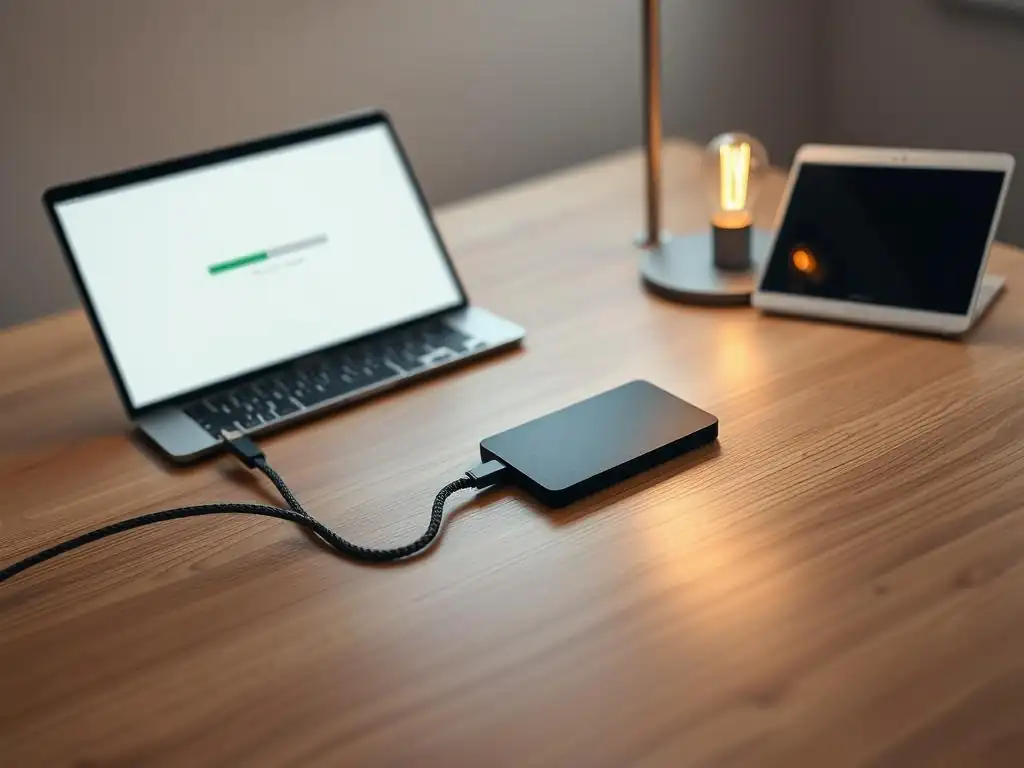
One of the most effective diagnostic steps for hardware wallet connection problems is to test the device on a different computer and/or using different USB ports. This helps isolate whether the issue is with the hardware wallet itself, the cable, or the original computer's configuration (drivers, operating system, software conflicts). If the hardware wallet connects and works correctly on a different computer, it strongly suggests the problem lies with your original machine – likely related to drivers, software conflicts, or potentially a faulty USB port.
Conversely, if the hardware wallet fails to connect on multiple computers and different USB ports, even with a known good cable, it points towards an issue with the hardware wallet device itself. This could be a damaged USB port on the wallet, an internal hardware failure, or a persistent firmware issue. This step is crucial before considering more drastic measures like factory resets or contacting customer support, as it helps narrow down the potential causes of the hardware wallet connection problems significantly.
Ensuring Proper Device Drivers for Your Hardware Wallet
For your computer to communicate correctly with your hardware wallet, the appropriate device drivers must be installed and functioning. While wallet software like Ledger Live or Trezor Suite typically handles driver installation automatically during setup, issues can arise. Operating system updates can sometimes disrupt existing drivers, or the initial installation might have been incomplete. If your computer recognizes other USB devices but not your hardware wallet, it could indicate a driver problem, leading to hardware wallet connection problems.
On Windows, you can check the Device Manager for your hardware wallet. It might appear under "Universal Serial Bus devices" or "Other devices" if the driver isn't installed correctly, possibly showing a warning icon. You might need to manually update or reinstall the driver. Often, simply reinstalling the wallet's companion software can fix driver issues, as the installer usually includes the necessary drivers. For macOS and Linux, driver management is generally more integrated, but ensuring your operating system is up to date can help ensure compatibility with the latest hardware wallet models and software versions.
Troubleshooting Ledger Live Connection Problems
Ledger Live is the primary desktop and mobile application for managing Ledger hardware wallets (Nano S, Nano X, Nano S Plus). Users sometimes encounter Ledger Live connection problems where the application fails to detect the connected Ledger device. A common cause is not having the Ledger device unlocked and on the dashboard screen before opening Ledger Live. The application needs to communicate with the device, which often requires it to be unlocked and in a ready state.
Another frequent issue is conflicts with other applications. Ensure no other wallet software (like Metamask or Electrum), browser extensions that interact with hardware wallets, or even multiple instances of Ledger Live are running simultaneously. These can interfere with Ledger Live's ability to establish a connection. Sometimes, simply closing Ledger Live and reopening it, or restarting your computer with the Ledger device connected and unlocked, can resolve temporary glitches causing Ledger Live connection problems. Checking Ledger's support page for known issues related to your specific operating system version and Ledger Live version is also advisable.
Fixing Trezor Suite Device Recognition Issues
Trezor Suite is the desktop application for managing Trezor hardware wallets (Model One, Model T). Similar to Ledger Live, users can face Trezor Suite device recognition issues, which are a form of hardware wallet connection problems. One specific Trezor issue can involve the Trezor Bridge, a separate small application that facilitates communication between Trezor Suite (or web wallets) and the Trezor device.
If the Trezor Bridge is not running, is outdated, or is blocked by a firewall, Trezor Suite may not detect the device. Checking the Trezor Bridge status in your system tray (Windows) or menu bar (macOS) and ensuring it's running is a key step.
Browser permissions can also play a role, especially if you are attempting to use a web-based wallet interface that relies on the Trezor Bridge or WebUSB. Ensure your browser has permission to access USB devices. Clearing your browser's cache and cookies can sometimes resolve permission-related conflicts. If Trezor Suite itself isn't recognizing the device, try reinstalling Trezor Suite to ensure the Trezor Bridge and necessary drivers are correctly installed. As with Ledger, closing competing applications and restarting your computer are basic but often effective steps for resolving Trezor Suite device recognition issues and other hardware wallet connection problems.
Resolving Software and Firmware Issues
Beyond connection problems, issues with the hardware wallet's software (the companion application on your computer/phone) and firmware (the operating system on the device itself) are common causes of malfunctions. Outdated or corrupted software/firmware can lead to a range of problems, from the device not being recognized to transaction signing failures or inability to access specific cryptocurrencies. Keeping both the companion software and the hardware wallet's firmware updated is crucial for security, compatibility, and optimal performance. Manufacturers frequently release updates to patch vulnerabilities, add support for new features or assets, and improve stability.
Firmware updates, in particular, are critical but must be performed carefully. They involve writing new code to the hardware wallet's secure chip. An interrupted or failed firmware update can potentially brick the device, although most modern hardware wallets have recovery modes. Software updates for the companion application are generally less risky but are equally important for ensuring compatibility with the latest firmware and blockchain network changes. Regularly checking for and applying these updates is a proactive measure to prevent many common hardware wallet connection problems and operational issues.
How to Safely Update Hardware Wallet Firmware
Updating your hardware wallet's firmware is a process that requires attention to detail to ensure safety and prevent issues. Before starting any firmware update, the absolute most critical step is to ensure you have your 12, 18, or 24-word recovery seed phrase securely backed up and accessible offline. While updates are designed not to erase your seed, there's a small risk of interruption or error that might require restoring your wallet from the seed. Never proceed with an update if you cannot locate or verify your recovery seed.
The update process is typically initiated through the official companion software (e.g., Ledger Live, Trezor Suite). Connect your hardware wallet to your computer using the original or a known good quality USB cable, preferably directly to a port on your computer. Unlock the device if required. Within the software, navigate to the settings or manager section, where you should find an option to check for and install firmware updates.
Follow the on-screen instructions precisely. The process usually involves downloading the update, verifying it on the device screen, and confirming the installation. Ensure your computer remains powered on and the USB connection is stable throughout the entire process, which might take several minutes. Avoid disconnecting the device or closing the software until the update is explicitly confirmed as complete on both the software and the hardware wallet screen.
Dealing with Firmware Update Failed Errors
Encountering a "Firmware Update Failed" error can be alarming, but it doesn't necessarily mean your hardware wallet is permanently damaged. These errors can occur due to various reasons, such as an unstable USB connection, insufficient power supply during the update, interruption of the process, or a corrupted update file download. If the update fails, do not panic. First, try restarting the companion software and your computer, then attempt the update again. Ensure you are using a direct, stable USB connection and that your computer is not likely to enter sleep mode or lose power.
Many hardware wallets have a recovery mode specifically designed to handle failed updates or unresponsive devices. For example, Ledger devices can often be put into bootloader mode, and Trezor devices have a recovery process via Trezor Suite that can attempt to reinstall firmware. Consult your hardware wallet manufacturer's official support documentation for specific instructions on entering recovery mode and retrying the firmware update or performing a factory reset if necessary.
If repeated attempts fail or the device seems completely unresponsive, contacting the manufacturer's customer support is the next step. Provide them with details about the error message and the steps you've already taken.
Clearing Cache and Reinstalling Wallet Software (e.g., Ledger Live, Trezor Suite)
Sometimes, the companion wallet software itself can become corrupted or accumulate temporary data (cache) that interferes with its proper functioning, including its ability to detect or communicate with the hardware wallet. This can manifest as hardware wallet connection problems, freezing, or incorrect display of information. Clearing the application's cache can resolve these issues by removing potentially corrupted temporary files. The location and method for clearing the cache vary depending on the software and operating system; often, there's an option within the software's settings (e.g., in Ledger Live, under Settings > Help > Clear Cache).
If clearing the cache doesn't help, a more drastic step is to uninstall the wallet software completely and then download and install a fresh copy from the official website. This ensures that any corrupted program files are replaced with clean ones and can also help reset any configuration issues. Before uninstalling, make sure you have your recovery seed phrase backed up, although uninstalling the software does not affect the funds stored on your hardware wallet. A clean reinstallation often resolves persistent software-related hardware wallet connection problems and operational glitches.
Addressing Transaction Signing Problems
Once your hardware wallet is connected and recognized, you might still encounter issues when attempting to send cryptocurrency or interact with decentralized applications – specifically, problems with transaction signing. The signing process is the core function of a hardware wallet, where the device uses your private key (stored securely offline) to cryptographically approve a transaction broadcasted to the network. If this process fails, you cannot move your assets. Common reasons for transaction signing problems include insufficient funds, high network fees, or compatibility issues between the wallet's firmware/software and the specific transaction type or network conditions.
When a transaction signing request is initiated from the companion software or a web interface, the details are sent to the hardware wallet for review and confirmation on the device's screen. The user must physically verify the transaction details (recipient address, amount, fees) on the hardware wallet's trusted display and confirm it using the device's buttons.
Failure to do this confirmation step, or if there is a mismatch between what is shown on the computer screen and the device screen, will result in the signing process failing. Transaction signing problems are distinct from hardware wallet connection problems, occurring after the device is successfully connected.
Insufficient Funds or High Network Fees
One of the most common reasons a hardware wallet transaction fails to sign is simply having insufficient funds. When sending cryptocurrency, you need enough balance not only to cover the amount being sent but also the associated network transaction fee. Network fees (often called "gas" on Ethereum, or measured in satoshis per byte on Bitcoin) are paid to the miners or validators who process and confirm transactions on the blockchain. These fees fluctuate based on network congestion.
If your balance is exactly the amount you wish to send, the transaction will fail because there are no funds left to cover the fee. For example, trying to send 1 BTC when your balance is exactly 1 BTC will fail; you need 1 BTC plus the fee. Similarly, trying to send 1000 USDC on Ethereum might require $5-$50 (or more during peak congestion) in ETH to pay for gas.
Ensure you have a sufficient balance including the estimated network fee. Wallet software usually provides an estimate of the required fee, often with options to choose different speed/fee levels (e.g., slow, medium, fast). If you select a fee that is too low during high network congestion, the transaction might not confirm or might fail to even broadcast correctly, sometimes appearing as a signing issue.
Ensuring Firmware/Software Compatibility for Transactions
Transaction signing problems can also arise if your hardware wallet's firmware or the companion software is outdated and not compatible with the latest network rules, transaction types, or asset standards. Blockchain networks undergo updates and forks, and support for new features (like SegWit addresses on Bitcoin, or new token standards on Ethereum) requires corresponding updates on the hardware wallet and its software. An old firmware version might not correctly interpret or sign a transaction format it doesn't understand.
For example, if you are trying to send a relatively new ERC-20 token on the Ethereum network, and your Ledger Nano S firmware is several years old, it might not have the necessary libraries or logic to handle that specific token contract interaction, leading to a signing failure. Similarly, using an outdated version of Trezor Suite might cause issues with signing transactions involving newer features implemented on the Bitcoin network.
Regularly updating both your hardware wallet's firmware and its companion software is crucial for ensuring compatibility with evolving blockchain technology and preventing transaction signing issues. This maintenance is as important as troubleshooting hardware wallet connection problems.
What to Do When Your Hardware Wallet Won't Sign
If your hardware wallet is connected and recognized by the software, but you encounter persistent transaction signing problems, there are several steps to take. First, re-verify the transaction details on the hardware wallet's screen carefully. Ensure the recipient address, amount, and fee match exactly what you intended. A common mistake is confirming a transaction without reviewing the details on the device itself. Double-check your balance to ensure you have sufficient funds to cover the transaction amount plus the network fee. Use a reliable fee estimator if necessary to gauge the current network congestion and required fee.
Next, ensure both your hardware wallet's firmware and the companion software are fully updated to their latest versions. Incompatible versions are a frequent cause of signing errors. If they are updated, try clearing the software's cache or even reinstalling the software.
If the issue persists, try performing the transaction on a different computer or using a different compatible software interface (e.g., using Electrum with your Ledger/Trezor for Bitcoin, or Metamask with your Ledger/Trezor for Ethereum, ensuring they are connected correctly). If none of these steps resolve the issue, contact the manufacturer's support team, providing them with details about your device model, firmware/software versions, the cryptocurrency you are trying to send, and the exact error message received.
Frequently Asked Questions
What are the most common causes of hardware wallet connection problems?
The most common causes involve incorrect driver installation, outdated or corrupted firmware, and incompatible USB cables or ports. These issues often prevent your computer from properly recognizing your hardware wallet.
How can I determine if my hardware wallet connection problems are due to outdated firmware?
Check the official website of your hardware wallet manufacturer for the latest firmware version. Compare this with your device's current version. If outdated, follow their instructions for updating the firmware.
What steps should I take if I suspect my computer's USB port is causing my hardware wallet connection problems?
Try using a different USB port on your computer, preferably a USB 2.0 port if available. Also, test the hardware wallet on a different computer entirely to isolate the problem.
Yes, antivirus software or firewall settings can sometimes interfere with the connection. Temporarily disable these programs to see if it resolves the issue, then reconfigure them to allow the hardware wallet's software.
What resources are available if I've exhausted all troubleshooting steps for my hardware wallet connection problems?
Consult the official support documentation for your specific hardware wallet model. You can also reach out to the manufacturer's customer support team or explore relevant forums and online communities for user-generated solutions.
Final Reflection: Securing Our Digital Future
The digital age has brought unprecedented opportunities, but also new vulnerabilities. The security of our digital assets hinges on robust solutions like hardware wallets, and understanding how to troubleshoot connection problems is now a fundamental skill. As we've explored in this article, overcoming these technical hurdles is not just about fixing a device; it's about safeguarding our financial autonomy in an increasingly complex world.
The reliance on hardware wallets underscores a growing awareness of personal responsibility in cybersecurity. This shift towards self-custody, while empowering, demands a proactive approach to learning and problem-solving. The frustration of a connection issue can be a powerful catalyst for deeper understanding. Security is always excessive until it's not enough.
This quote reminds us that vigilance and preparedness are not burdens, but essential investments in our digital well-being.
Now, armed with the knowledge and troubleshooting tips shared in this article, take a moment to reflect on your own digital security practices. Are you truly prepared to protect your assets? Don't let technical difficulties deter you from embracing the power of self-custody. Embrace the challenge, learn from every hurdle, and secure your digital future with confidence.
Ignite Your Crypto Security: Take Control Now!
Thank you for diving into the world of hardware wallet security! You've now got the knowledge to troubleshoot common hiccups and keep your digital assets safe. Let's put that knowledge into action and solidify your crypto fortress.
Here's how you can take the next step:
- Secure your peace of mind by backing up your hardware wallet's seed phrase TODAY! This is your ultimate recovery key.
- Explore the advanced security features of your specific hardware wallet model. Uncover hidden gems that can further strengthen your defenses.
- Share this vital information with your crypto community. Help others safeguard their assets and build a more secure blockchain ecosystem.
What's one unexpected lesson you learned about hardware wallet security, and how will you apply it today?
Leave a Reply